What your client sees
A tour of the portal from your client's side: signing in, finding their documents, providing their files, signing, writing and paying. Handy to walk them through it on the phone, or to send them these explanations as is.
Signing in
Your client signs in with their Email and Password. On your own domain, the screen carries your firm's name; they can switch between French and English at the top right.
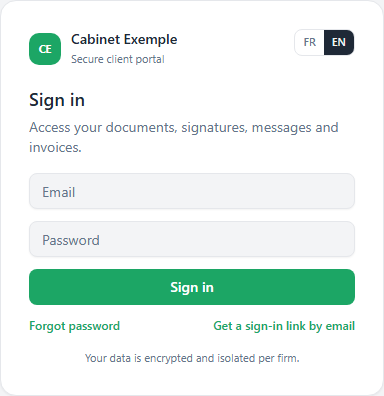
- Forgot password: they enter their email, then click this link; they receive an email to choose a new one.
- Get a sign-in link by email: a sign-in link, no password needed.
For security, the answer is the same whether the address is known or not ("If an account exists for this address…"): the screen never reveals who your client is. After several requests in a row, the portal asks them to wait an hour.
Opening a link received by email
Invitation, reset and sign-in links first lead to a confirmation screen. Your client clicks Continue and their session opens.
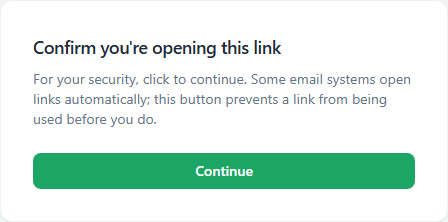
Some business email systems open links automatically to scan them. Without this button, they would use up the link, which works only once, before your client does. An expired or already used link shows "This link no longer works": they just request a new one from the sign-in screen.
On their first visit, the invitation takes them to the welcome screen to choose a password, then Create my access. The Password requirements box ticks each rule as they type: at least 10 characters, one lowercase letter, one uppercase letter, one number and one symbol (such as! @ # $ % ?). A password exposed in a known data leak is refused, even if it ticks every box.
Home
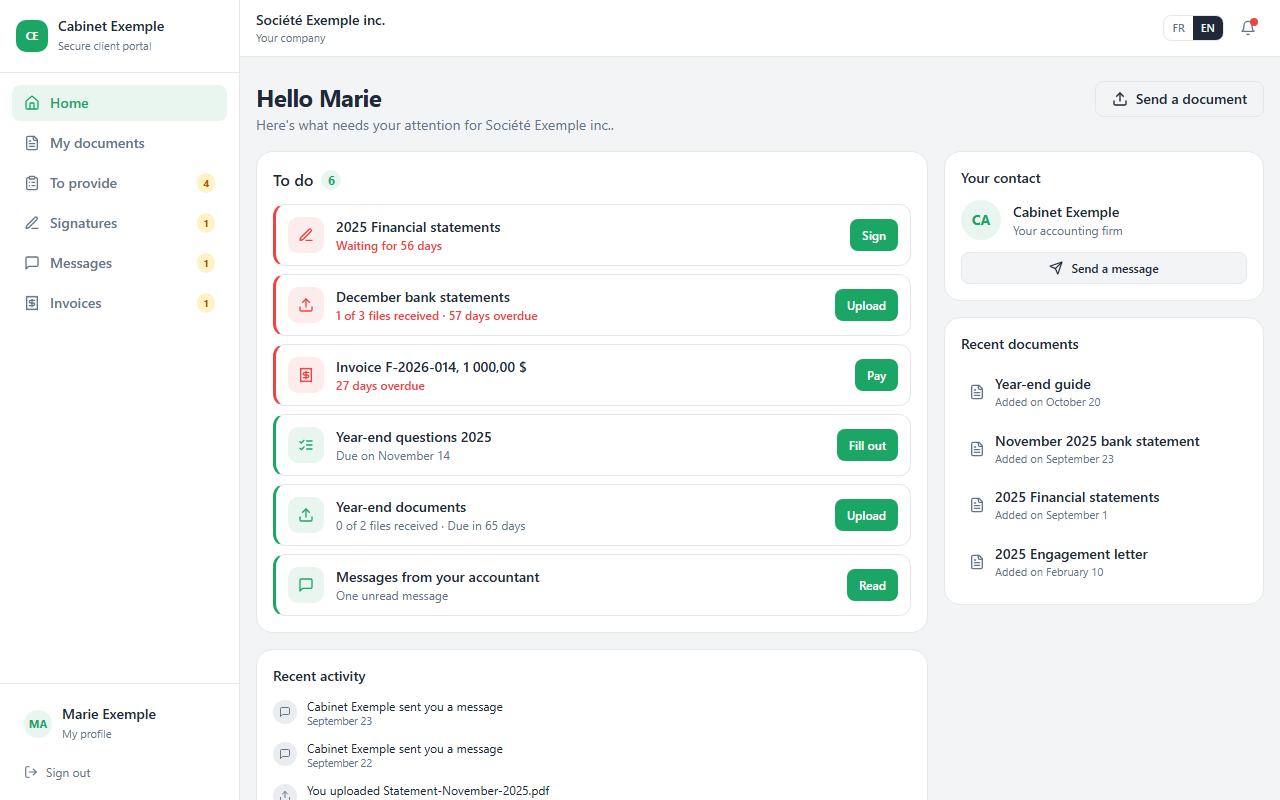
"Hello Marie": everything waiting for your client, most urgent first.
- To do gathers the documents to sign, the files to provide, the invoices to pay, the questionnaires to fill out and the unread messages, each with its button (Sign, Upload, Pay, Fill out, Read). Anything overdue is flagged in red.
- Your contact shows your firm, with Send a message.
- Recent documents and Recent activity sum up what happened.
- At the bottom of the page, a switch lets them turn their email notices off or back on.
The left menu leads to the other pages: My documents, To provide, Signatures, Messages and Invoices, with a badge when something is waiting. On a phone, the menu becomes a bar at the bottom of the screen. If your client has several companies with you, they switch between them at the top of the screen.
My documents
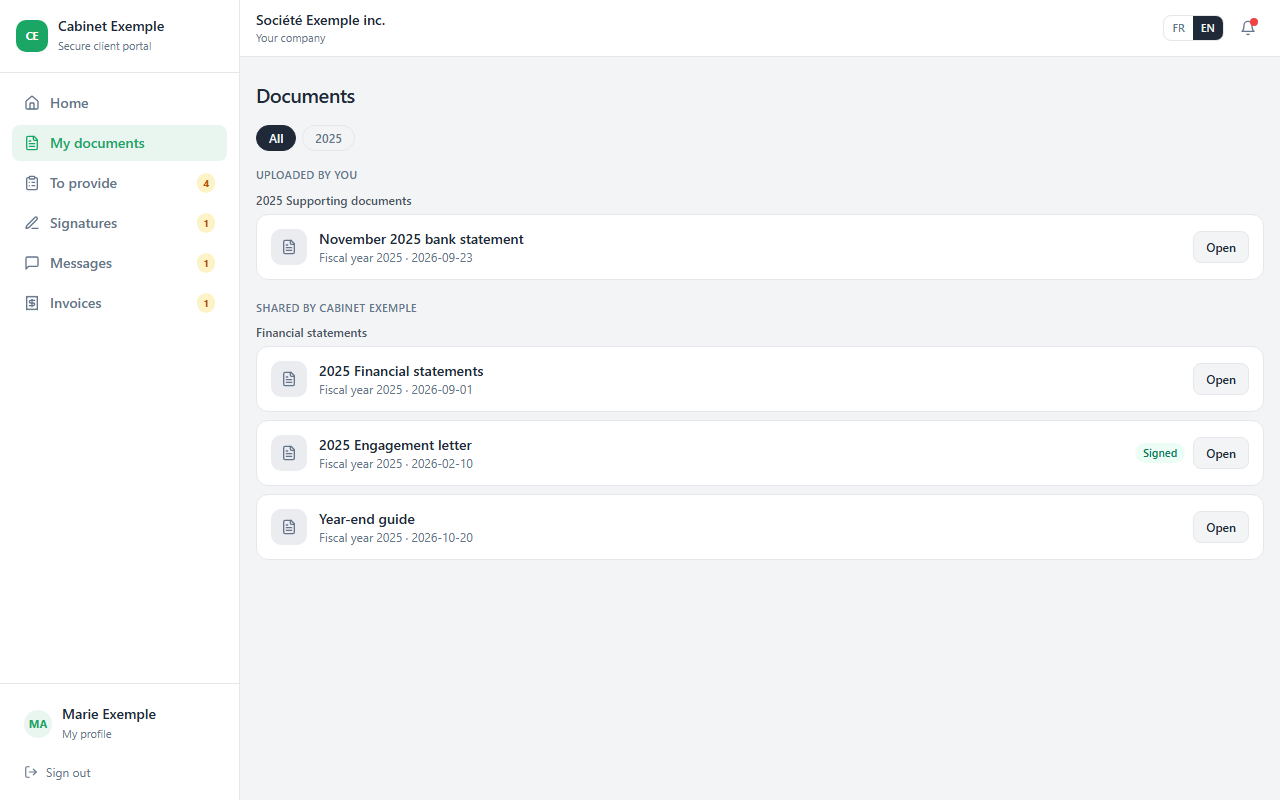
Their documents in two groups: Uploaded by you (what they sent you) and Shared by your firm, each filed in its folders. The fiscal-year chips filter the list, and Open shows the document. They never see the Internal family.
To provide
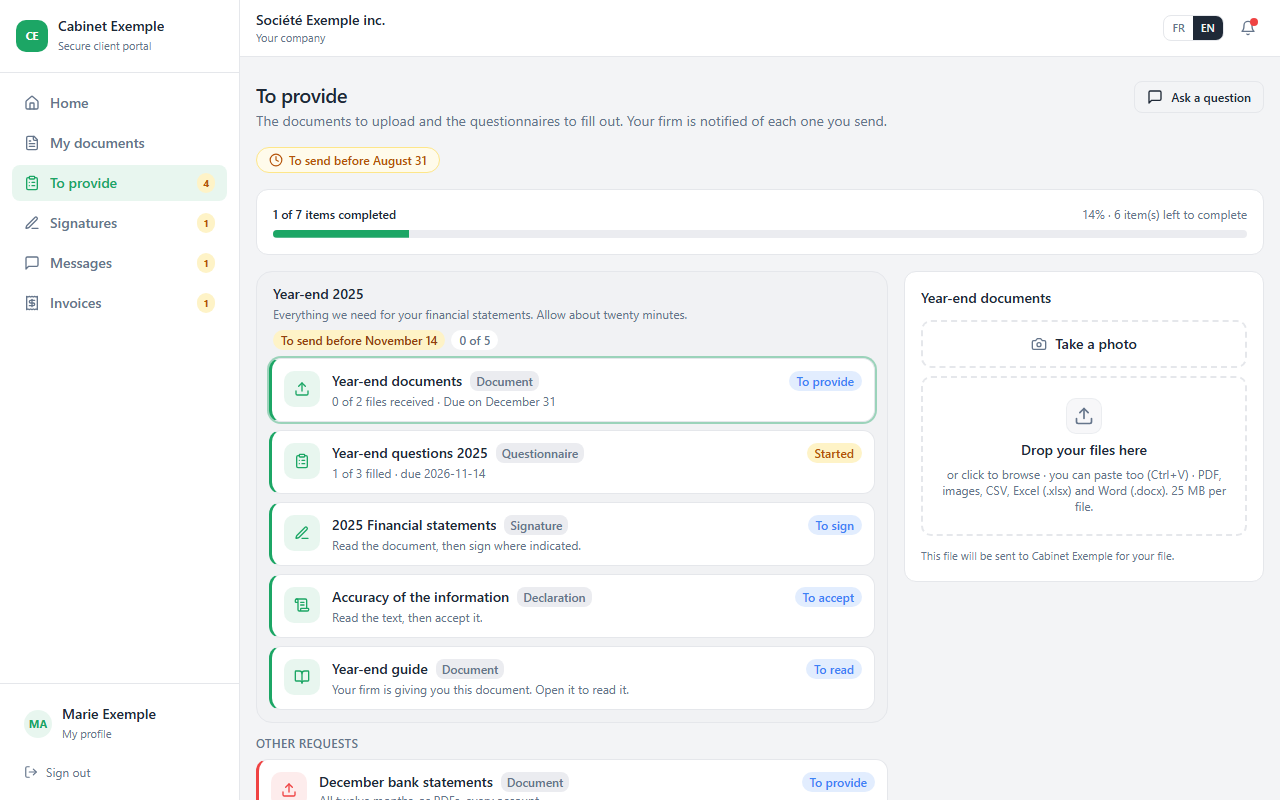
Everything you need from them, in one place: the documents to upload and the questionnaires to fill out, each with its label (Document or Questionnaire), progress and due date. They pick a document on the left and upload it on the right; your instructions show under Message from your firm, with Reply. A questionnaire opens as a full page. What is done moves to Completed, below the list.
A bundled request shows as a card, with its title, your instructions, its due date and its progress; its documents, questionnaire, documents to sign or to read and declaration to accept are gathered there. An optional document shows there without counting in the progress.
For a document you did not request, they pick Other document, below the list. If they have no open request, the page offers Send a document right away: they do not have to wait for you to create one.
Signatures
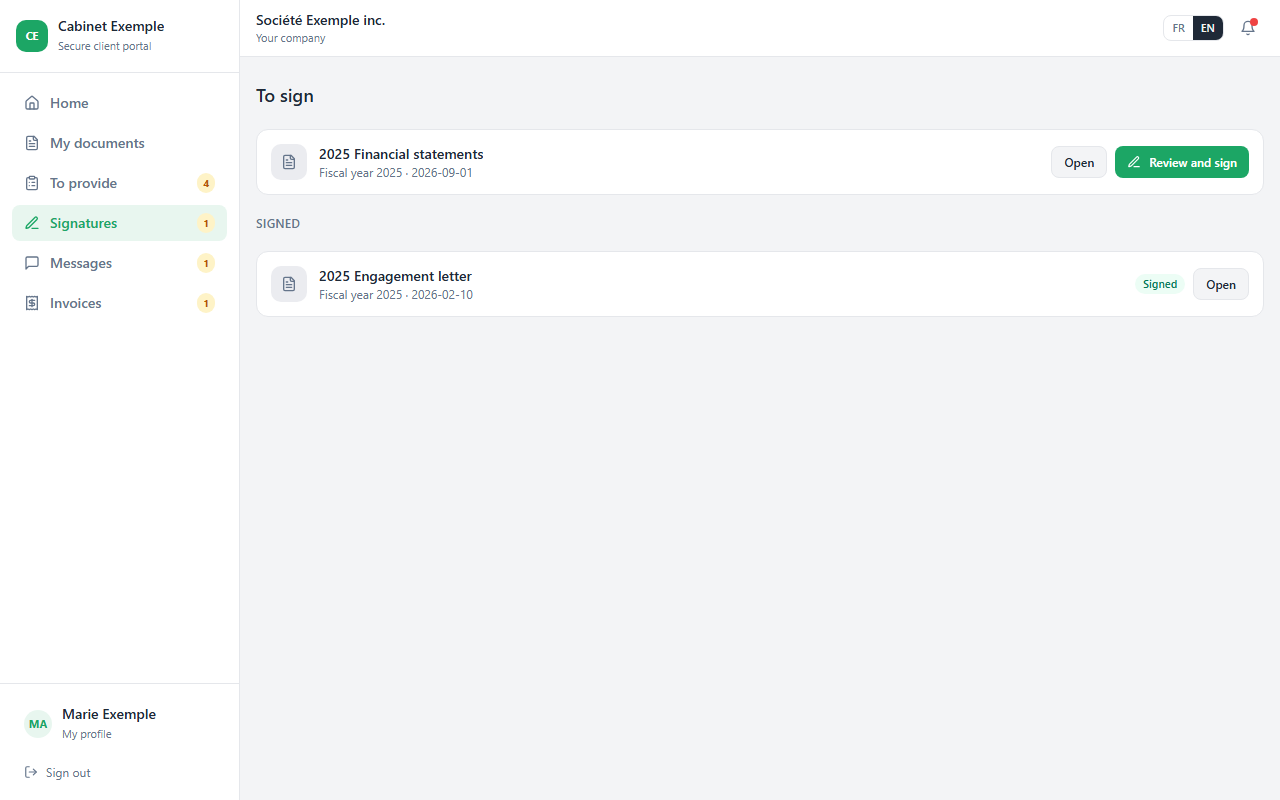
The documents to sign, then the signed ones. Review and sign starts the guided signature: adopt a signature, fill in each field, finish. The details are in Get a document signed.
Messages
Their conversations with your firm, full screen, with the name of each person who writes to them. They can start a New conversation, format their text and attach files.
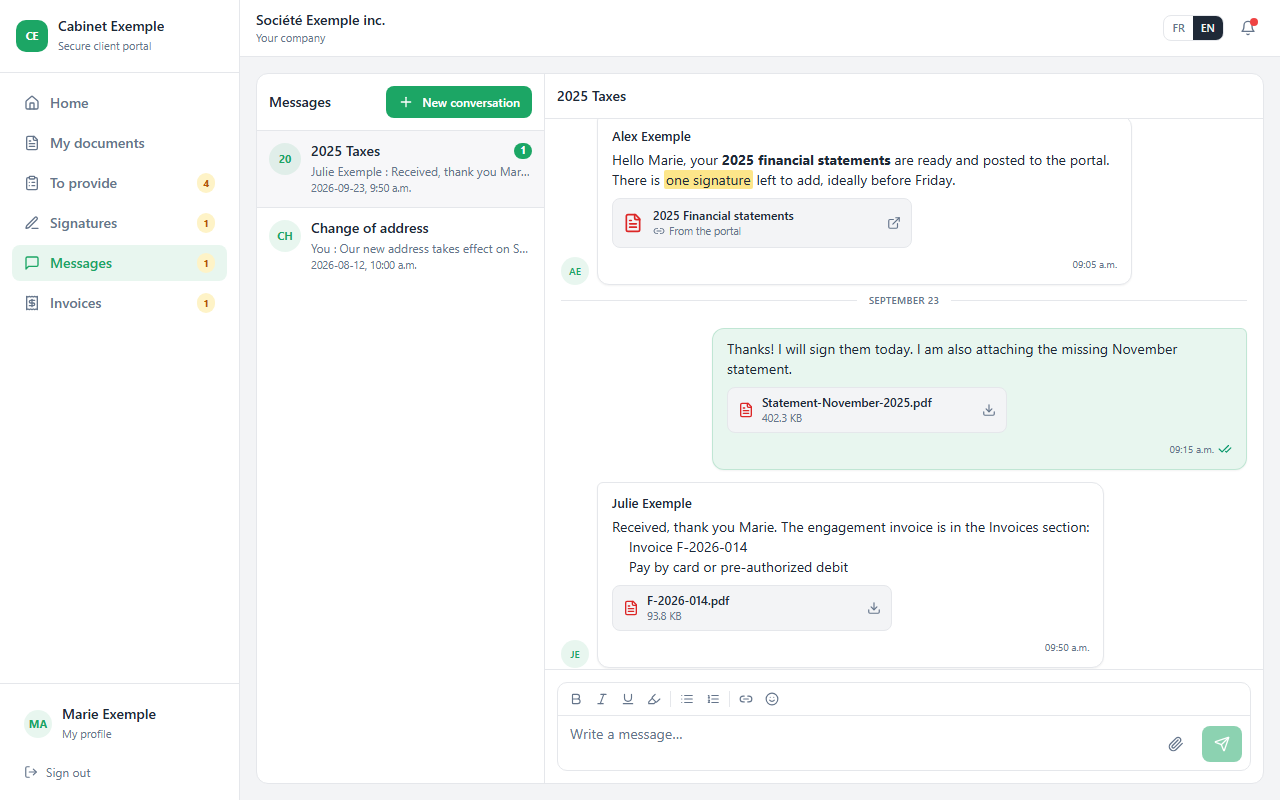
Under Alex's message, the financial statements already on the portal, marked From the portal: a click opens them the same way as from My documents.
Invoices
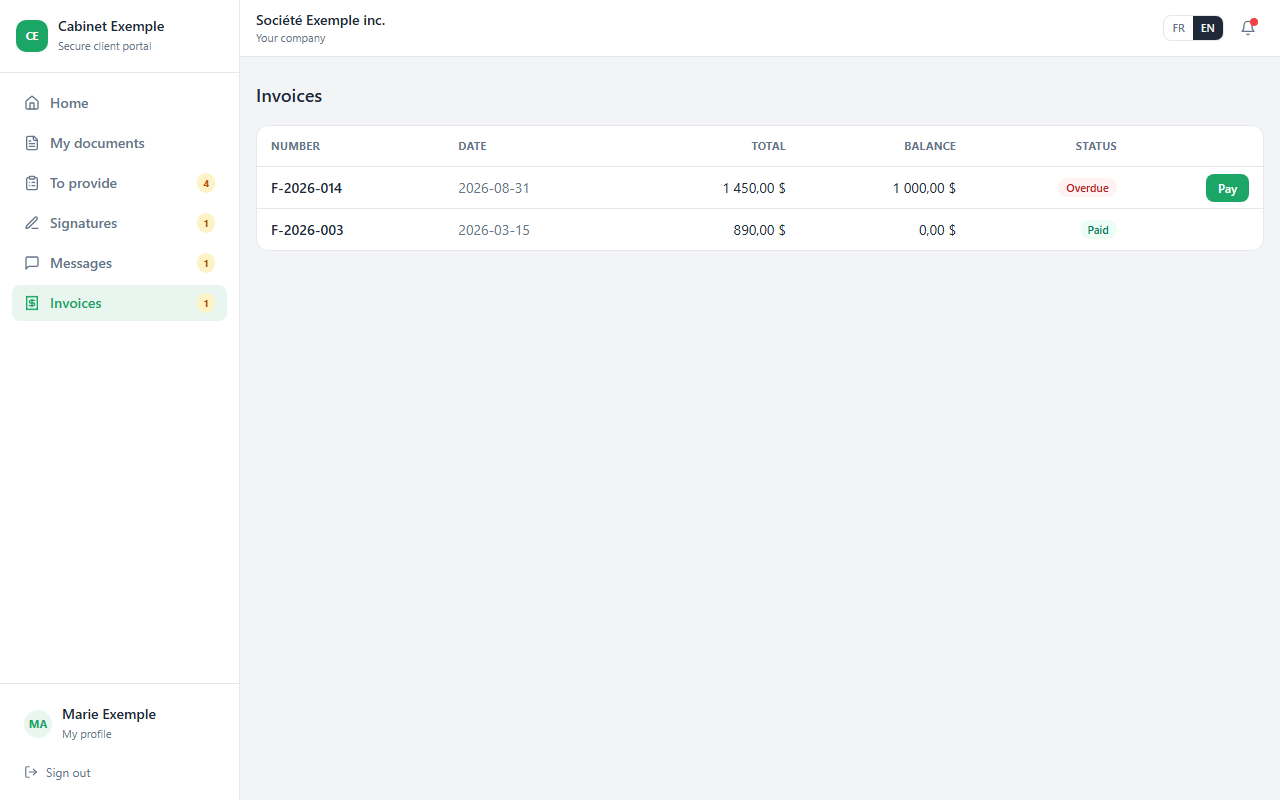
Their invoices, with the Total, the Balance and the Status (To pay, Paid, Overdue). When online payment is offered, the Pay button opens the invoice's payment page. An invoice shows up here as soon as it is created; one you keep as a Draft does not, until you switch it to Active.
My profile
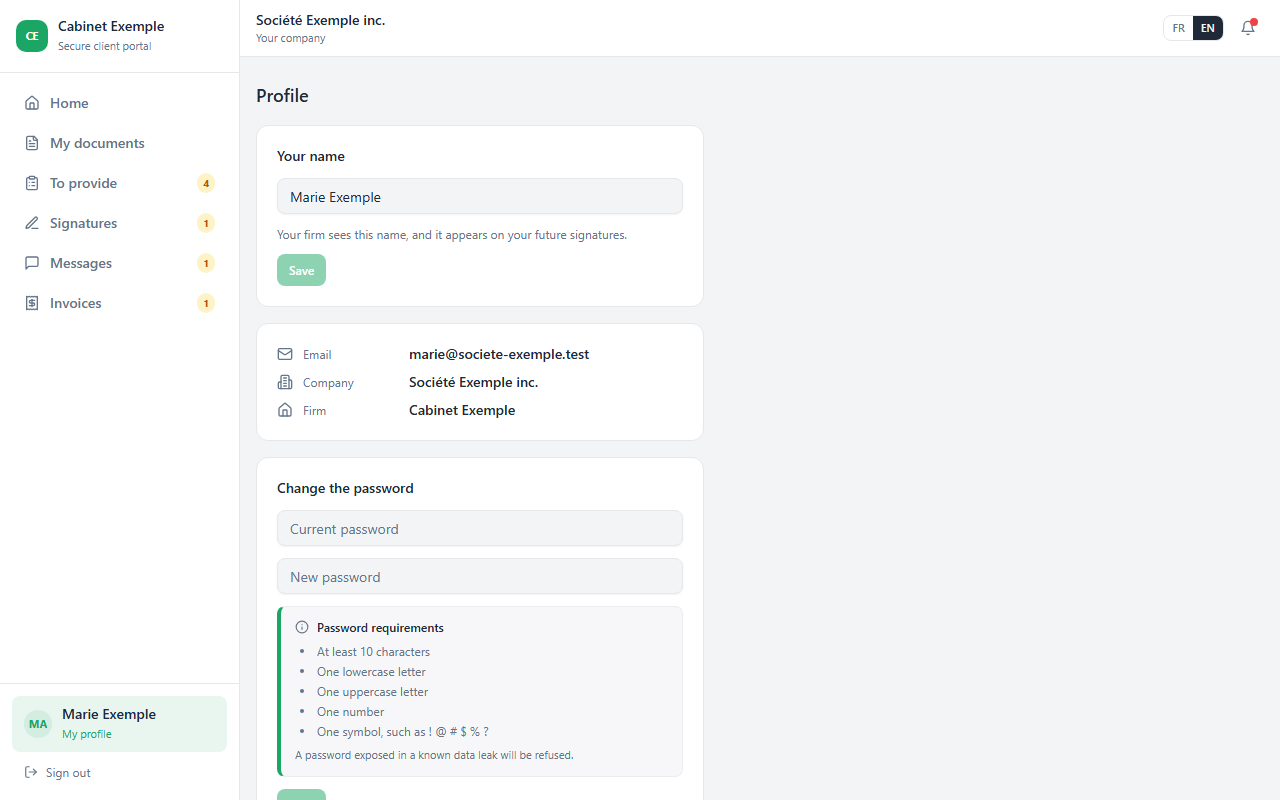
At the bottom of the menu, My profile shows their name. To change it, they edit it under Your name and click Save. You then see the new name, and it appears on their future signatures; the ones already made keep the name of the day they signed.
The page also shows their email, company and your firm, and lets them change the password. They first enter their current password, then the new one. If they came in through a link received by email, the new one is enough. Sign out is right below.